
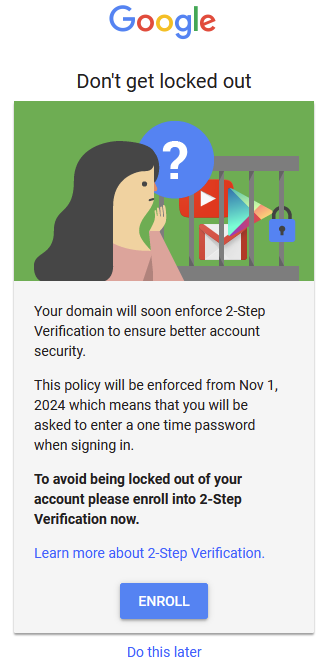
Google two-factor authentication ("2FA" - also known as 2-Step Verification) will be mandatory for staff Google accounts starting on November 1st. You’ll have the option to trust computers and devices that you use often so that you won’t be prompted to two-factor authenticate every time.
To begin setting up 2FA on your account you can either:
Follow this link: Set up 2FA on your Google account.
Or, select Enroll when prompted by Google to set up 2FA - this button should take you to a myaccount.google.com page.
Under the Second steps section, select the option you want to use and follow the on-screen instructions to complete the setup process. You may be prompted to re-enter your password.
Phone number (easiest to set up)
This method delivers a passcode to your phone by text message or automated phone call.
Your phone number will only be used for account security.
It’s best to use a mobile phone number, as it’s a device you can carry with you.
This method relies on your mobile signal - if you're in a location where you can't receive text messages or calls, you won't be able to receive a passcode.
Google prompt (must also set up another authentication method)
Google prompts are push notifications you’ll receive on:
Android phones that are signed into your Work Google account
iPhones or iPads with the Gmail, Google Search, Smart Lock, YouTube or Google Photos app installed and signed in to your Work Google account.
You will need to sign in on one on Android, iPhone or iPad first, before you can use it to receive Google prompts.
You’ll also be prompted to add a backup 2FA option, in case you're not able to receive a Google prompt.
Authenticator
Use an authenticator app on your phone (such as Google Authenticator, Authy App, or Microsoft Authenticator) to generate verification codes.
You can download Google Authenticator from the Google Play Store or the iOS App Store
You can download the Authy App here: Authy App
You can download the MIcrosoft Authenticator App here: Microsoft Authenticator
These codes can be generated even if your phone has no mobile signal or wifi.
Security key
A security key is a small device (which often looks like a USB stick).
You connect this (via USB or NFC) to the device you are logging in to. They are small enough that they can be conveniently carried on a keychain.
You will need to have a compatible FIDO U2F security key.
You can contact IT Services to request a security key if you are not able to use one of the other authentication methods. Backup codes may be provided as an alternative to a security key.
- If you're trying to register your own security key, follow these instructions provided by Google:
Use a security key for 2-Step Verification - Google Account Help
After you have set up at least one second step, select Turn on 2-step verification. You can confirm that Google 2FA is switched on by going to myaccount.google.com/security.
